Printed equations in slides, papers and textbooks are slow to retype. ClariRec turns a formula screenshot into LaTeX, lets you fix whatever the recognizer got wrong, and then gets the result into the document you are actually writing — as an editable Word equation, a .tex or Markdown fragment, or a transparent PNG.
Recognition runs on-device with the built-in GLM-OCR engine (20 free recognitions each calendar month on eligible Macs, unlimited with Pro), or through a BYOK cloud provider you configure (Pro). It is user-triggered: normal text OCR stays on the default System OCR path.
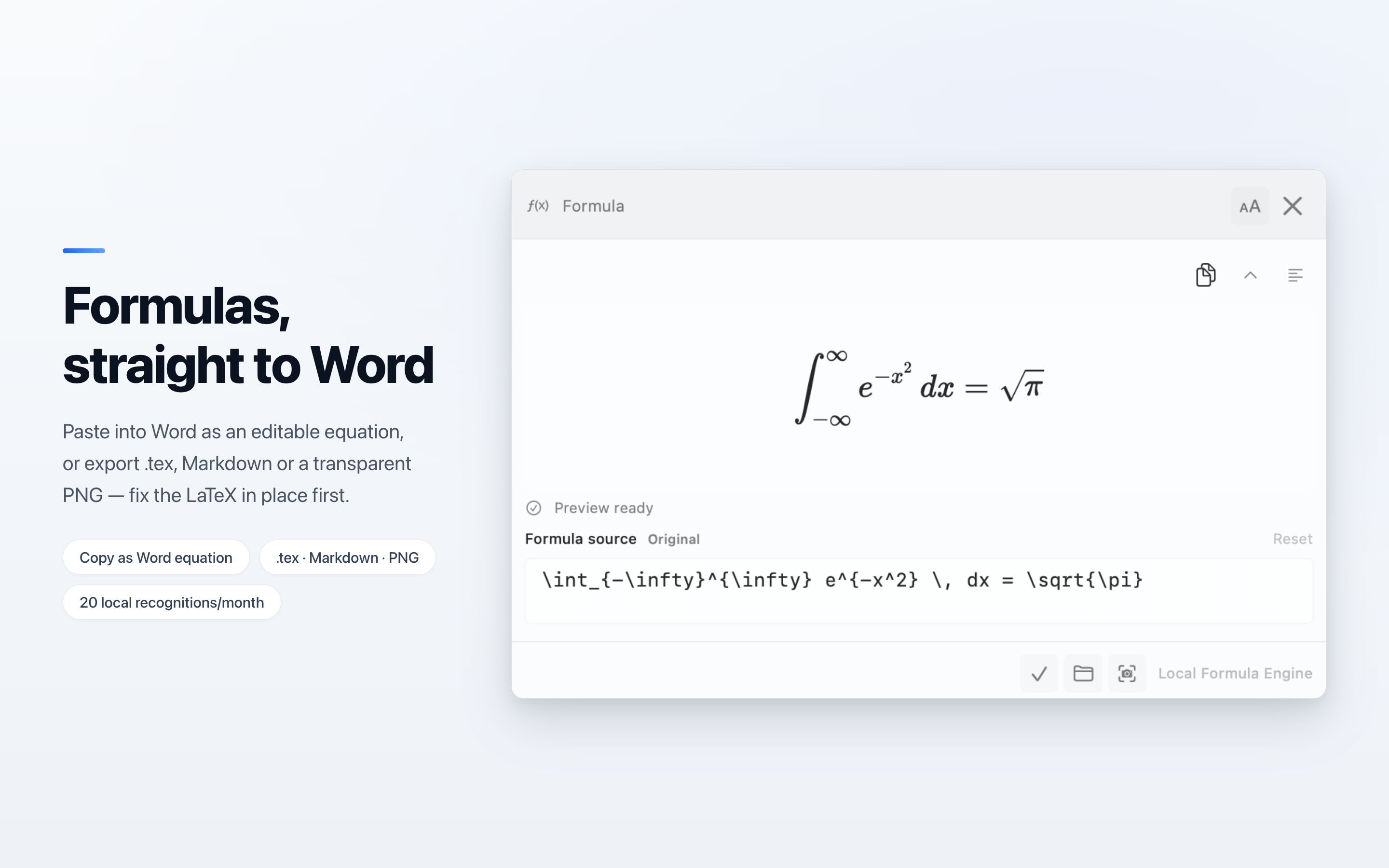
The workflow
- Capture the formula with
⌥S. Select tightly around the equation. - In the result window, click Recognize formula. The window switches to the typeset result.
- Check the preview. If something is off, click Show formula editor (pencil icon) and correct the LaTeX source.
- Open Copy or export formula (document icon) and pick the output that matches where the formula is going.
Editing, previewing, copying and exporting never run the recognizer again and never use your monthly allowance.
1. Recognize
| Local (GLM-OCR) | Cloud (BYOK) | |
|---|---|---|
| Needs API key? | No | Yes |
| Works offline? | Yes, after model download | No |
| Model download | ~1.34 GB, one time | None |
| Device requirement | Apple silicon + 16 GB memory | Any Mac running ClariRec |
| Providers | Built-in GLM-OCR | Custom Vision API or Qwen |
| Speed (typical) | ~2 seconds | Depends on provider |
| Pro required? | No — 20 free a month; Pro removes the limit | Yes |
Both paths render the LaTeX locally with KaTeX.
How the monthly allowance works
- Only a successful on-device recognition counts. A failed or cancelled run does not.
- Going back to a formula you already recognized in the same result window does not count again.
- The 20 recognitions reset at the start of each calendar month (UTC).
- When they run out, Recognize formula offers Pro. Formulas you already have stay editable, copyable and exportable.
Try it without the model: Settings → Providers → Formula → Formula examples opens five built-in formulas with the same result view — no download, no network, no allowance used.
2. Correct
Recognition is good, not perfect: a \times read as x, a subscript one level off, an alignment mark dropped. You don’t have to leave ClariRec to fix it.
- Click Show formula editor. The Formula source field opens under the preview, marked Original until you change something and Edited afterwards.
- The preview follows as you type. If the source has a syntax error, the status line explains it and the source stays editable.
- KaTeX supports a large subset of LaTeX, not every package. Commands it cannot render are reported as unsupported instead of failing silently.
- ⌘Z undoes one step at a time. Reset returns to the recognized original — and Reset itself can be undone.
- Copy and export always take the source as it is when you click, not the last preview.
3. Deliver: copy or export
Everything lives in the Copy or export formula menu.
| Where the formula is going | Use |
|---|---|
| Microsoft Word (Mac) | Copy as Word Equation, then ⌘V in the document |
| Overleaf, TeX editors | Copy raw LaTeX, or Copy as $$…$$ for a display block |
| Obsidian, Typora, Notion and other Markdown notes | Copy as $…$ / Copy as $$…$$, or Export Markdown fragment… |
A .tex file you include elsewhere |
Export .tex fragment… |
| Pages, Keynote | Copy raw LaTeX, then in Pages or Keynote choose Insert → Equation, paste into the equation box and click Insert |
| Slides, image-only editors, anywhere that can’t take LaTeX | Export PNG (2x, Default)… or Export PNG (3x)… |
Copy as Word Equation
Paste into the body of a Word document and you get a native, editable equation — click into it and change it like any equation you typed in Word. No Insert Equation, no LaTeX mode, no Convert step.
- Tested with Word for Mac: fractions, roots, sums and integrals with limits, matrices,
cases,aligned, accents, stretchy brackets and\textall arrive as equation structure. - The clipboard also carries the raw LaTeX as plain text, so pasting somewhere that doesn’t understand equations gives you the source instead of nothing.
- A formula recognized as inline may appear as a centered equation when pasted into an empty paragraph; that is how Word places it.
Full steps, the structures tested and paste troubleshooting: Paste a formula screenshot into Word.
Export .tex and Markdown fragments
Fragments, not full documents: no \documentclass, no preamble.
| Format | Display formula | Inline formula |
|---|---|---|
.tex |
\[ … \] |
$ … $ |
| Markdown | $$ … $$ |
$ … $ |
Export a transparent PNG
- Transparent background, dark ink, cropped to the formula with a small margin — it works on light and dark slides alike.
- 2x is the default; 3x for large projection or print.
- The bundled KaTeX fonts are loaded before the image is taken, so you never get fallback glyphs.
- Colors from
\colorand\colorboxare not kept; the export is always dark ink.
When some options are disabled
- Several separate formulas in one source (for example
$a$ and $b$): the wrapped copies and all exports are disabled until you arrange it as one formula. Copy raw LaTeX still works. - A
%comment on the last line would swallow a closing$, so Copy as $…$ is disabled; the display and export options still work. - The menu shows the reason in both cases.
Files are written only to the location you choose in the save panel. Cancel, and nothing is created.
Local engine: GLM-OCR
- On-device formula recognition based on GLM-OCR (Q8_0 quantization, model weights under MIT license), two files totaling ~1.34 GB
- Works offline after download — no API key, no cloud account
- Unloads after 5 minutes idle, or earlier under memory pressure; the next recognition reloads it
Requirements
- Apple silicon Mac with 16 GB of memory or more
- No purchase needed: 20 free recognitions a month, unlimited with Pro
On a Mac below the threshold, the local engine’s panel explains why it can’t run there and download is disabled — recognition on CPU alone would take around 15 seconds instead of 2. Formula recognition still works through a cloud provider.
Download and setup
- Open Settings → Providers, then choose the Formula segment.
- Click Local Formula Engine in the list.
- Click Download Model. Both files show their own progress; download is resumable and verified with SHA-256.
- When both files are ready, the engine is available offline.
In automatic mode, a downloaded local model is used first. To use a cloud provider instead, pick it under Formula provider. The model can be deleted from the same panel.
China mainland App Store accounts download from a ModelScope mirror for speed, falling back to Hugging Face if it fails.
Cloud engine: BYOK providers
What it is
- Screenshot → LaTeX through a vision-language model you configure
- BYOK: you bring the provider and pay it for usage
- Two providers supported: Custom Vision API / Custom API and Qwen
Mistral AI works for OCR and translation in ClariRec, but not for formula recognition.
Requirements
- ClariRec Pro (one-time purchase)
- A formula-capable provider configured with a valid API key
- A model that accepts images and can return structured formula output
Setup
- Open Settings → Providers → Formula.
- Configure Custom API or Qwen (API key; base URL and model as needed).
- Run Test Formula to confirm the provider returns usable LaTeX.
- Choose it under Formula provider.
Field-by-field help: API key guide. Only the screenshot you recognize is sent to your endpoint; ClariRec does not relay it through its own servers.
Tips for better LaTeX
- Crop tightly; keep unrelated paragraph text out of the selection
- Clear, high-contrast printed formulas work better than blurry phone photos
- For a small slip, fix it in the editor; for a badly wrong result, adjust the selection and recognize again
- Very large selections (above ~2560×1440) are downscaled automatically
Privacy and cost
| Item | Local (GLM-OCR) | Cloud (BYOK) |
|---|---|---|
| When data leaves your Mac | Never (after model download) | When you recognize a formula |
| Where it goes | Nowhere | Your configured Custom API or Qwen endpoint |
| Editing, preview, copy, export | On your Mac | On your Mac |
| ClariRec servers | None | None |
| API cost | None | Billed by your provider |
Pro unlocks features inside ClariRec. It does not include provider credits.
Troubleshooting
The local engine won’t download The panel says why: it needs Apple silicon and 16 GB of memory. Use a cloud provider on other Macs.
Model download stalls or fails Check your network. Download resumes where it stopped. If both sources fail, try again later.
Copy as Word Equation pastes text instead of an equation Paste into the body of a Word for Mac document, not into a text box. Other apps receive the raw LaTeX by design; in Pages or Keynote, paste it into Insert → Equation instead.
An export or copy option is greyed out
Open the menu to read the reason — usually several formulas in one source, or a % comment on the last line.
The preview says a command is unsupported KaTeX doesn’t render that command. The source is still yours to copy; for Word or PNG output, rewrite it with a supported command.
Formula provider is missing or disabled Confirm Custom API or Qwen is configured in the Formula segment and that Pro is unlocked.
Test Formula fails Check the API key, endpoint, model name, and that the model accepts images.
You only needed plain text Use normal OCR. Formula recognition is optional and separate from System OCR.
Related
Local formula OCR · Formula into Word · API keys · Screenshot OCR · FAQ · Local OCR · Offline checklist